
FAQ
- Written by: Chris Ludwig
- Hits: 35313
Who and what is Backcountry BC?
Backcountry BC is a grassroots organization intended to serve as a platform of advocacy for all backcountry users in the province of British Columbia. This website was built and is maintained exclusively by volunteers.
This website is a space for everyone's backcountry access issues, and is a place where we can all work together to try to solve them. This website has been desgned to accomodate an almost infinite number of authors (contributors), and a massive number of articles, documents and data.
It is also our intentetion with this website to provide a central long-term, freely accessible repository of documents for the backcountry community and the general public.
How do I join?
All members of the public can self-register and become a registered member for free on the Home Page.
How do I become an author on Backcountry BC?
We always wecome new authors and contributors to Backcountry BC. Registered users may make their request through our Request to be Author form.
Part II - How do I insert YouTube Videos, Photo Galleries, and a map with a GPX Track into my article, comment or post?
Click Next Below for a Tutorial
NEW 2025 - How do I add video, images to my articles, comment or post?
This has been simplified with Backcountry BC's new text editor.
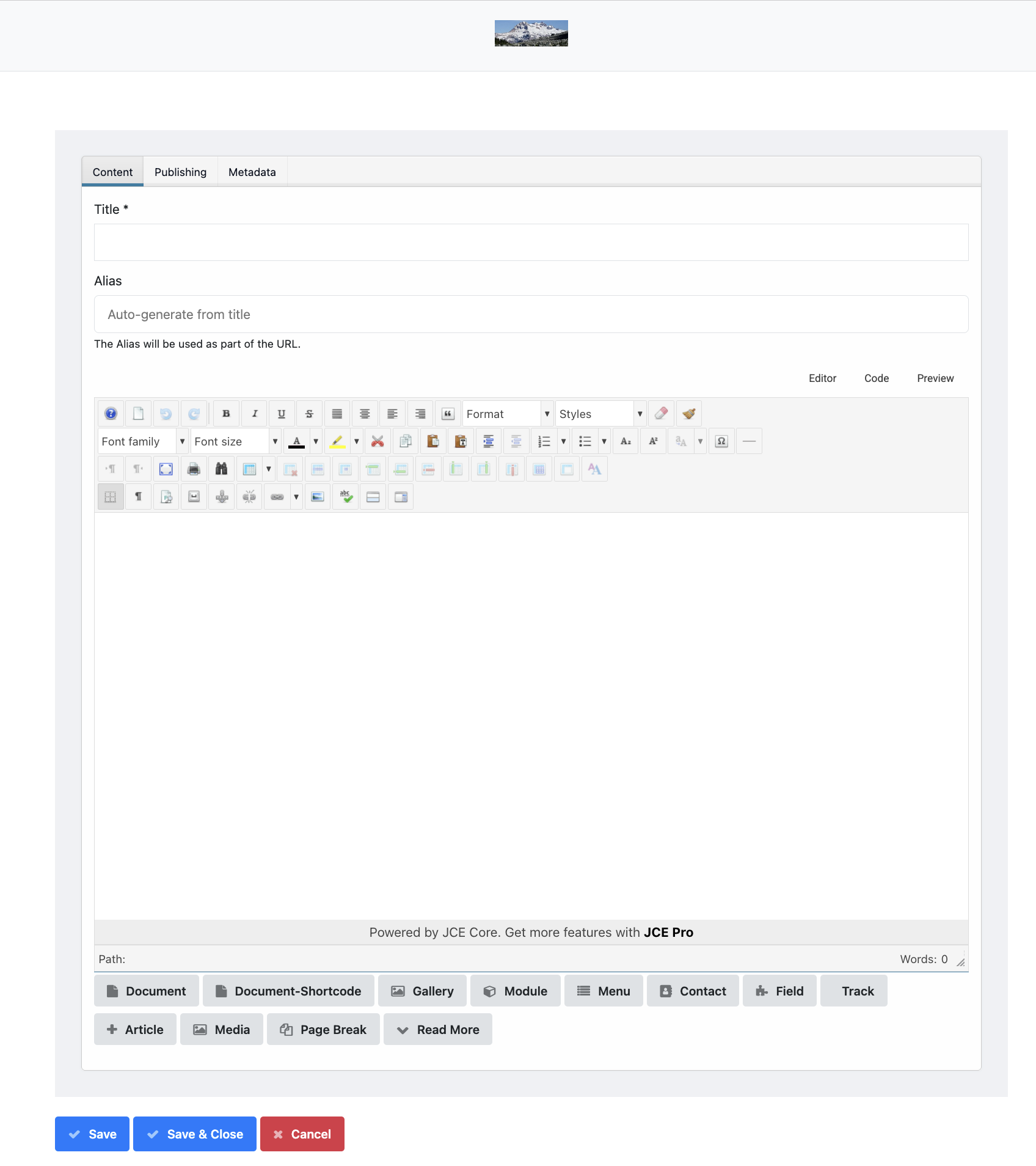
To add image or video galleries into your article, first, click in the body of your aricle in the text editor to place the cursor where you want to insert your photo gallery. At the bottom of the Text Editor is a button labeled "Gallery". Click on the button, then follow the instructions provided by of the component. The component also allows for multiple file uploads.
How do I display a map with a GPX track in my article or post?
This is easy because our trail database component is fully integrated with all other areas and components on Backcountry BC.
Step 1: Click in the body of your article in the text editor to place the cursor where you want to insert your track
Step 2: Click on the "Track" button at the bottom of the text editor (see Screenshot Above)
Step 3: Select the track in from the list of tracks.
Note that you will have to add the track to the trail database first if it does not already exist.
IMPORTANT: Only one GPX map can be displayed in a single article using this plugin.
How do I add a Trail Database Category to Backcountry BC?
Make your request through our Request New Categories form.
Example of the Watersprite Trail inserted into this article:
About the Document and File Repository and Instructions on Usage
This powerful component allows authors, clubs, and groups to upload large quantities of documents for planning and advocacy purposes directly in the front end of the Backcountry BC. It also allows Authors to easily insert any uploaded document into their articles. By default, uploaded documents can be viewed by the public and can be downloaded by any logged in Registered User. The Respository also contains powerful privacy controls which allow for specific documents or document categories to be accessible only by certain users and user groups if desired.
Note: We encourage all authors to make as much of the File Repository available to the public as is possible (to view and to download).
How do I Upload a Document to the File Repository? (For Authors Only)
Method 1) In the File Repository, click on the "Upload Document" Menu item on the right and follow the instructions. Please be thoughtful of your choice of category, and when in doubt, choose "Non-categorized User Uploads"
Method 2) In the File Repository, navigate to the desired category where the file is to be uploaded (using the categories layout at the bottom or using the Menu on the Right). Click on the "Upload" button on the right of the page. The category will be automatically set to your current location.
Method 3) While creating or editing a new article, click on the "Document" button at the bottom of the editor (See Screenshot Above). There is the ability to upload a document into any category here.
What if there isn't a category relvant for my document?
Make your request through our Request New Categories form.
Alternatively, upload your document to the "Non-categorized User Uploads" category and let the Web Team figure it out where it should go.
How do I add a document in the File Repository to my Article?
While creating or editing a new article, click on the "Document" button at the bottom of the editor (See Screenshot Above). This feature allows you to easily add any document(s) from the File Repository into your article. The "Document" button also features an upload document function as well. Multiple documents can be added into a single article if desired.
Part IV - Instructions for Authors
Click Next Below for a Tutorial
Part IV - Instructions for Authors
How do I create a new article (for authors)
Step 1 - Log into your account
Step 2 - Using the 'User Menu' on the home page, click on Create an Article
Step 2 - Using the text editor, add your content.
Step 3 - Use the 'publishing tab' to choose a category for your article. Then Click "Save & Close" at the bottom of the editor. Your article will be automatically posted.
How do I add a new issue category to Backcountry BC?
Make your request through our Request New Categories form. Let us know your specific needs and we will do our best to satisfy them in a timely manner.
How do I edit my articles?
Step 1 - Log in to your account on the Home Page
Step 2 - Navigate to the article you wish to edit
Step 3 - click on the blue "edit" button in the upper right of the article (see screenshot below)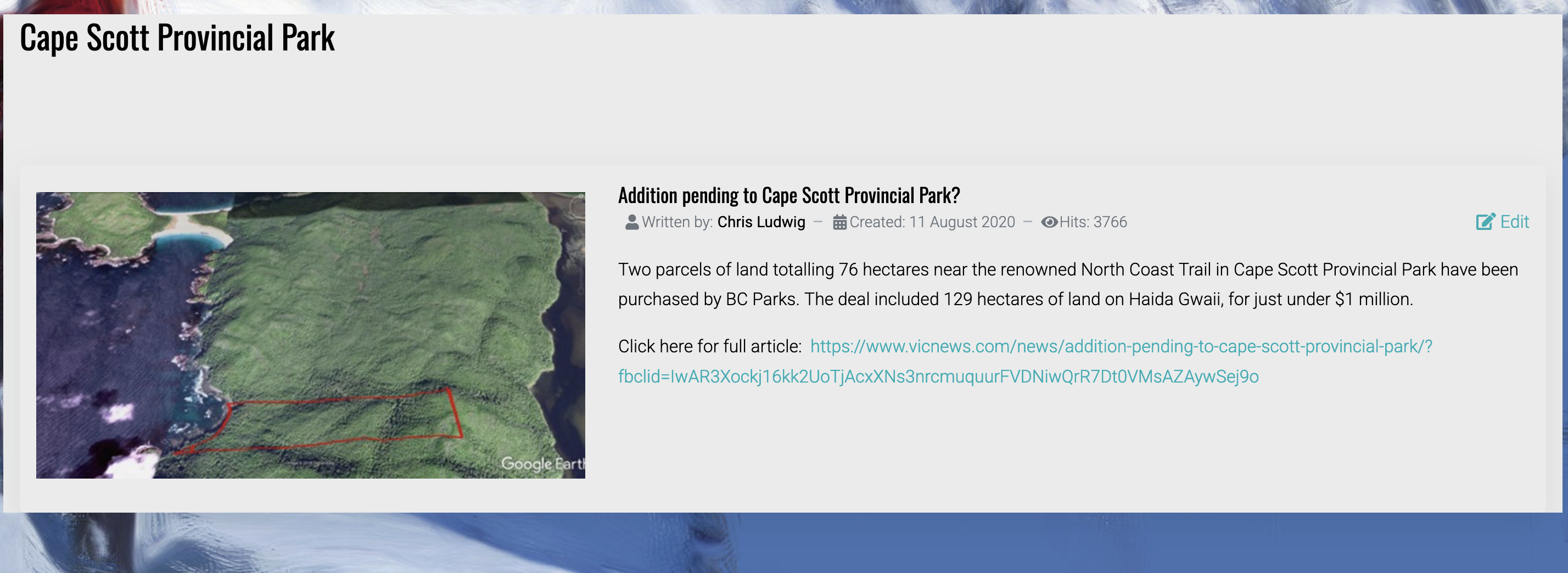
Step 4 - Edit your article in the text editor, then click "Save & Close " when finished your editing
I accidentally posted to the wrong category. How do I move my article to the correct category?
*Note that authors are only alowed to edit their own articles
Step 1 - Follow Steps 1 - 4 on 'How do I edit my articles'
Step 2 - At the top of the text editor click on "publishing"
Step 3 - Use the drop-down menu under "category" to select the new location for your article
Step 4 - Click "Save & Close" at the bottom of the text editor